Let's start here. Set up a place to work, two different AI services and one building tool. One AI is your planning partner: it plans with you and writes every prompt for your builder. The other checks the work. Use accounts you already have. Add other tools when your app needs them.
A A separate sign-in on your computer, with its own files and settings.For example: Use one computer sign-in for Lunchbox work and another for personal things.Still unclear? Ask your AI: “Explain Computer profile in even plainer English. Use an example from my app.” is a separate sign-in on the same computer. It keeps work files and The app you open to visit websites, such as Safari or Polar.For example: Open Polar and type the address of the Lunchbox website.Still unclear? Ask your AI: “Explain Browser in even plainer English. Use an example from my app.” logins together, away from your personal workspace.
Already have this? Use the computer profile you already build in.
Optional. Not needed yet? Leave it unchecked and continue. You can return here later.
You’re done when: You can switch into your chosen workspace and find your files, or you have chosen to use your usual profile.
Pick one as your planning partner. It helps you plan and writes every What you ask an AI to do. It can be a question or a set of instructions.For example: “Show me three ways Lunchbox could help a busy parent.”Still unclear? Ask your AI: “Explain Prompt in even plainer English. Use an example from my app.” for your building tool. Use the other to look for mistakes. Start with accounts you already have.
Already have this? Sign in and continue. Choose two services you can access.
You’re done when: You can ask a question in each of two different AI stands for Artificial Intelligence.Computer tools trained to do jobs such as answering questions, making pictures or writing code. They can make mistakes, so you still check the work.For example: Ask an AI to suggest Lunchbox screens, then decide which ones help a parent.Still unclear? Ask your AI: “Explain AI in even plainer English. Use an example from my app.” services, and you know which one is your planning partner.
A browser with an AI helper inside. You can ask it to read pages, click buttons and do jobs across websites.For example: Ask Polar: “Help me connect Lunchbox’s website to the web address I bought.”Still unclear? Ask your AI: “Explain Polar in even plainer English. Use an example from my app.” is a The app you open to visit websites, such as Safari or Polar.For example: Open Polar and type the address of the Lunchbox website.Still unclear? Ask your AI: “Explain Browser in even plainer English. Use an example from my app.” with an AI stands for Artificial Intelligence.Computer tools trained to do jobs such as answering questions, making pictures or writing code. They can make mistakes, so you still check the work.For example: Ask an AI to suggest Lunchbox screens, then decide which ones help a parent.Still unclear? Ask your AI: “Explain AI in even plainer English. Use an example from my app.” helper built in. Tell it what you need in plain English, and it can work across websites and help with setup.
Already have this? Open Polar, check which profile is active, and continue.
You’re done when: You tried one small task, and project links open in Polar (by themselves, if your device allows it).
A A tool that keeps your passwords for you and can fill them in when you sign in.For example: It fills in your GitHub password so you can get back to your Lunchbox files.Still unclear? Ask your AI: “Explain Password manager in even plainer English. Use an example from my app.” or your The app you open to visit websites, such as Safari or Polar.For example: Open Polar and type the address of the Lunchbox website.Still unclear? Ask your AI: “Explain Browser in even plainer English. Use an example from my app.” can remember your passwords, so you can get back into your tools.
Already have this? Use your existing manager. Check that it works in your building browser.
You’re done when: You can sign back in to your tools and know where your passwords and An extra copy kept so you can recover work if the original is lost or damaged.For example: Download a copy of your Lunchbox brand notes before switching browsers.Still unclear? Ask your AI: “Explain Backup in even plainer English. Use an example from my app.” codes are kept.
Use any name you like. Each app will get its own folder inside it.
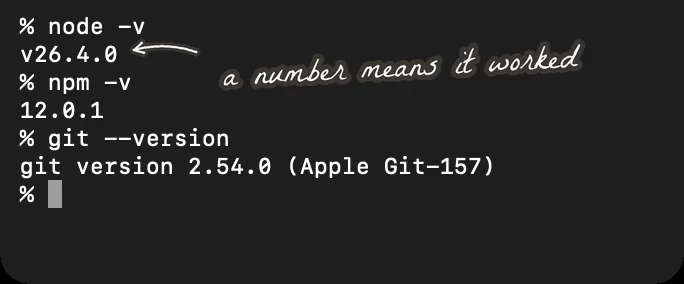
You’re done when: You can find and reopen the folder where your building projects will live.
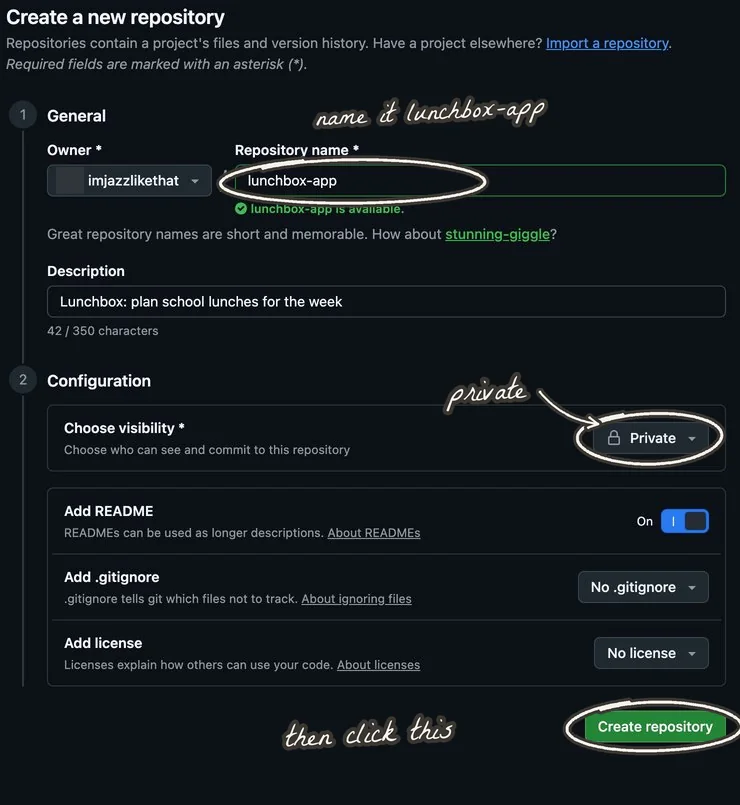
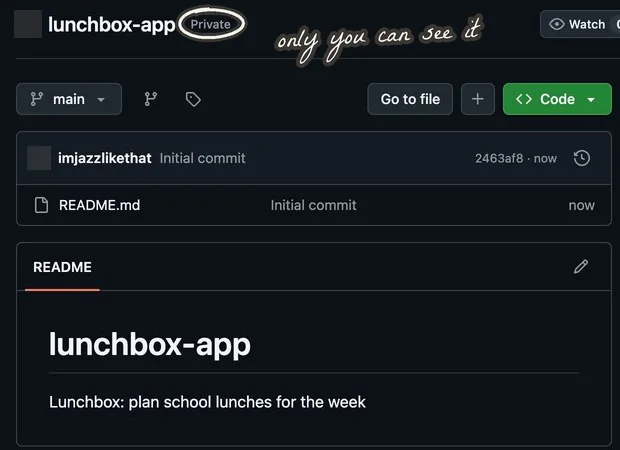
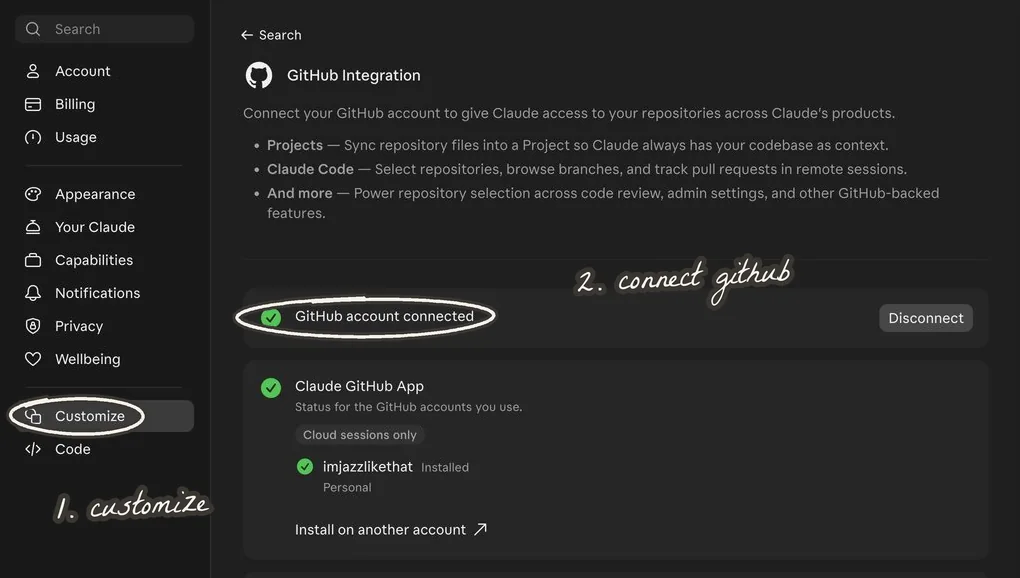
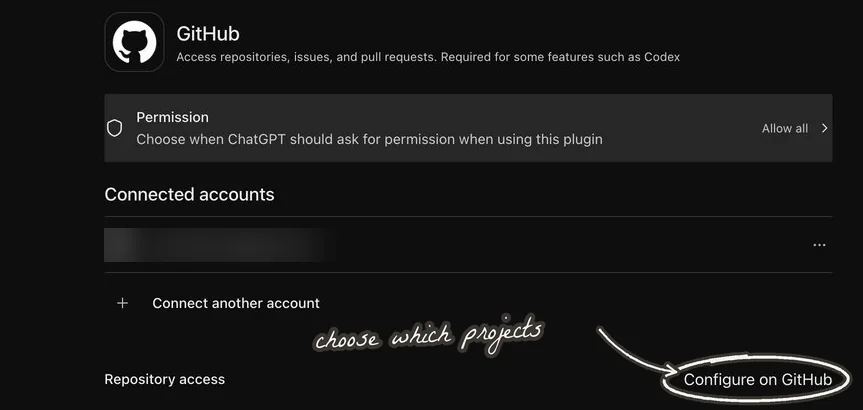
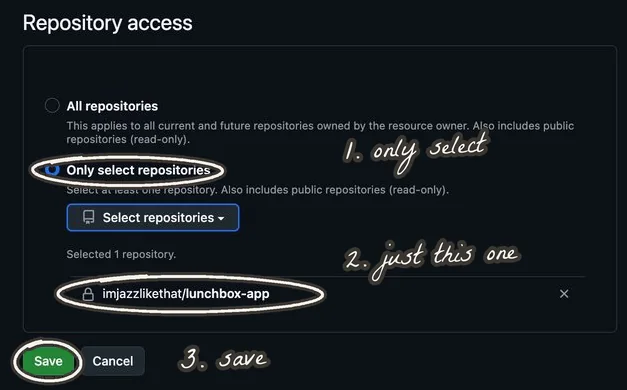
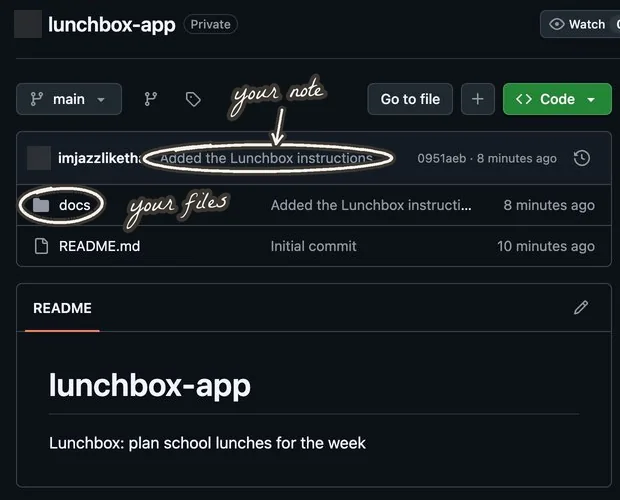
A website for keeping your app’s files online. It also keeps the older versions you send there.For example: Send Lunchbox’s files to GitHub. Later, you can open that saved version from another computer.Still unclear? Ask your AI: “Explain GitHub in even plainer English. Use an example from my app.” is a website where you keep a copy of your app’s files and older versions of your work.
Already have this? Sign in and continue. Use your existing GitHub account.
You’re done when: You can sign in, recognize your GitHub username and get back into the account.
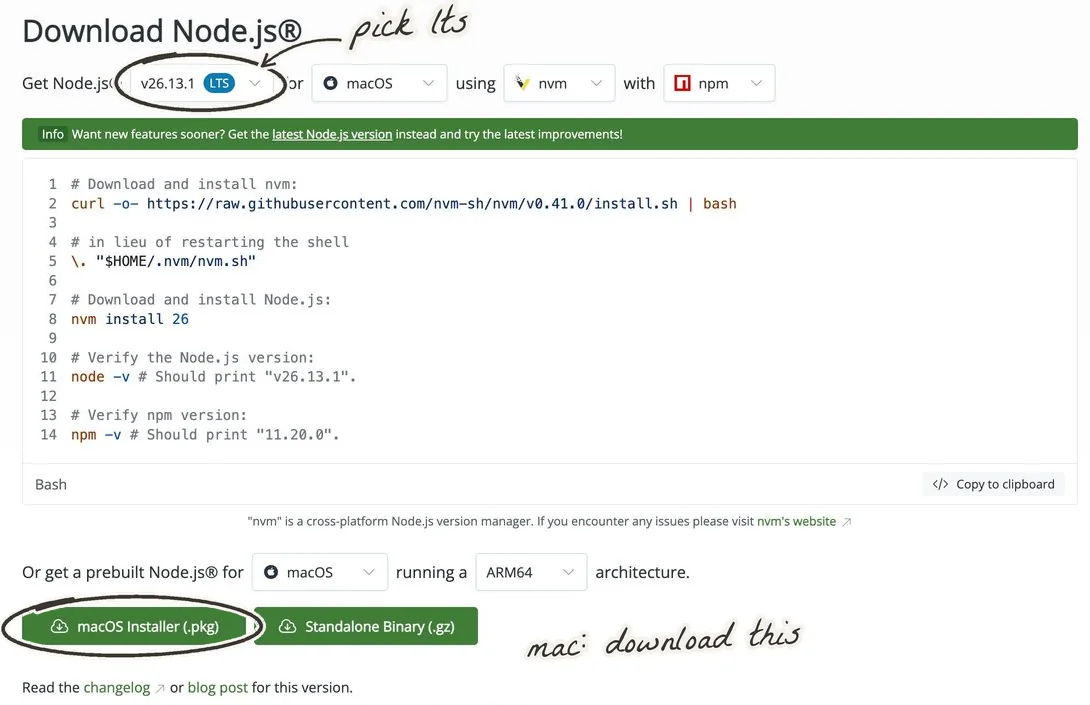
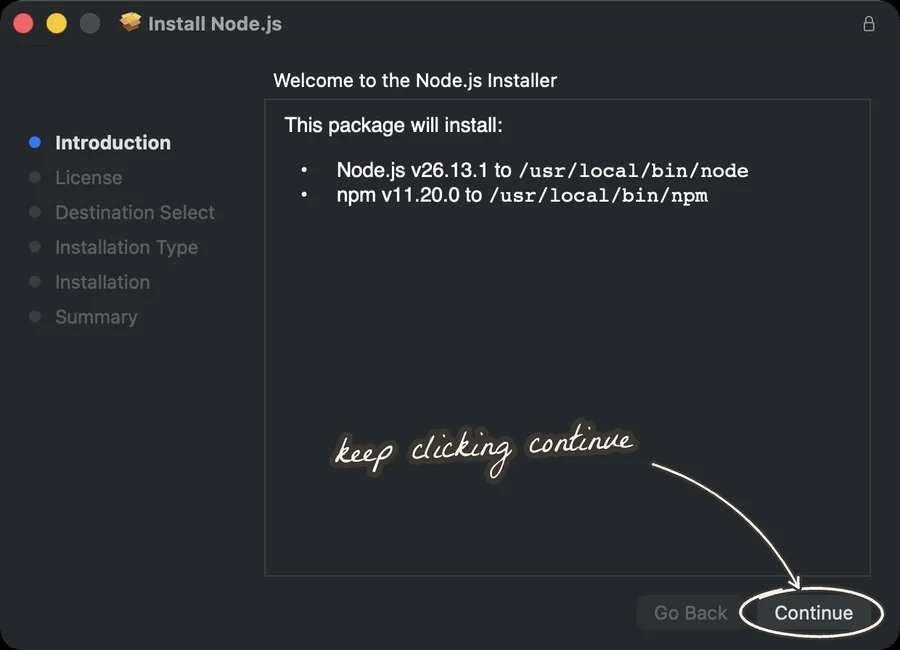
You need a tool that can change your app’s files and check that they work. Cursor is one choice.
Already have this? Open your existing building tool and continue.
You’re done when: You can open your chosen building tool and explain why it fits how you want to work.
Use this only if you chose Cursor. Other building tools are fine.
Already have this? Open Cursor and continue; no duplicate setup is needed.
Optional. Not needed yet? Leave it unchecked and continue. You can return here later.
You’re done when: If using Cursor, you can open it and find where to open a folder and ask its AI stands for Artificial Intelligence.Computer tools trained to do jobs such as answering questions, making pictures or writing code. They can make mistakes, so you still check the work.For example: Ask an AI to suggest Lunchbox screens, then decide which ones help a parent.Still unclear? Ask your AI: “Explain AI in even plainer English. Use an example from my app.” for help.
Want a hand? Polar is a browser with an AI helper built in. Paste this instruction and it can work across websites, clicking and filling things in with you. You can also do these steps yourself.
See the prompt
Help me finish my workspace setup, one step at a time. First ask which AI accounts, password manager, GitHub account and building tool I already use. Help me sign in and check each one works. Do not create extra accounts or start paid plans. I will type passwords and verification codes myself. Explain each action and wait while I complete it. Stop before payments, public posts or deleting anything.