You do not need to read everything before starting. Follow the path, and open a lesson when you want a little more explanation. Tap a word’s + to see its meaning.
🍱When a lesson mentions Lunchbox, we mean our example app. It's an app for parents of toddlers to help them plan school lunches for the week.
01 · 3 min read
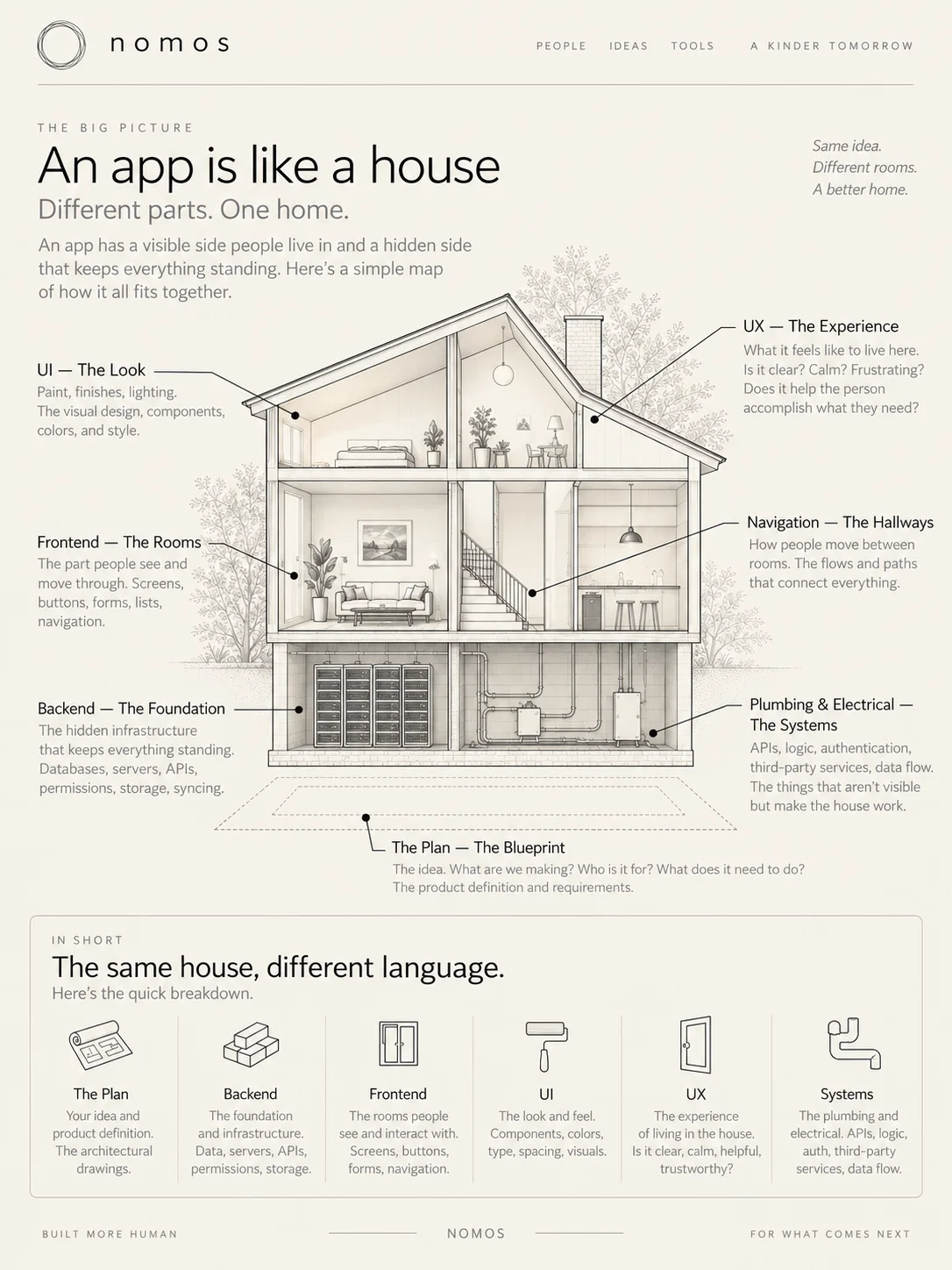
🏡An app is like a house
A house has rooms you can see and pipes and wires you may not see. An app also has visible parts and work happening behind them.
The planThe blueprint
Your idea. What are we making, who is it for, and what does it need to do?
The work the app does behind the screens, such as saving a plan or checking who may see it.For example: Lunchbox saves a family’s meals and checks that only that family can open them.Still unclear? Ask your AI: “Explain Back end in even plainer English. Use an example from my app.”The foundation
The work behind the screens: saving information and checking who may use it.
The part of your app that people see and use.For example: Lunchbox’s screens, buttons, meal pictures and shopping list.Still unclear? Ask your AI: “Explain Front end in even plainer English. Use an example from my app.”The rooms
The part people see and move through: screens, buttons, forms and lists.
:UI stands for User Interface.The things people look at and use on a screen, such as buttons, pictures and words.For example: Lunchbox has a big Add lunch button that is easy to see and tap.Still unclear? Ask your AI: “Explain UI in even plainer English. Use an example from my app.” User InterfaceThe look
The things you see and use, such as buttons, words and pictures. Like the doors, switches and signs in a house.
:UX stands for User Experience.What it is like to use your app, from the first tap to finishing a job.For example: A parent can find tomorrow’s lunch without getting lost in menus.Still unclear? Ask your AI: “Explain UX in even plainer English. Use an example from my app.” User ExperienceThe experience
What it is like to use the whole app. Can you find what you need and finish the job?
NavigationThe hallways
How people move from room to room. The paths that connect everything.
SystemsPlumbing and electrical
The parts that connect services, such as sign-in and payments. An API stands for Application Programming Interface.An agreed way for one program to ask another for information or to do a job.For example: Lunchbox asks a recipe service for lunch ideas. The API tells it how to ask and how the answer will come back.Still unclear? Ask your AI: “Explain API in even plainer English. Use an example from my app.” is an agreed way for one program to ask another to do a job.
You can sketch the rooms and choose a look first. Before we build the finished rooms, we need a clear plan and a safe foundation.
Code is written instructions for a computer. Different languages and tools can do the same job. You do not have to write the examples below. Read the plain English that goes with each one.
Programming languages are languages
This was one of the things that finally made code less intimidating to me. The languages people speak do not always put words in the same order.
In English, we might say:
Iput onmy shoes
I put on my shoes.
Japanese can structure the same thought more like:
Ishoesput on
I, shoes, put on.
The filled word is the verb.
That is simplified, obviously, but the point is that the thought can be the same even when the order of the words is not. Some languages commonly put the verb earlier. Some put it later. The grammar changes. Code started making more sense to me when I realized programming languages can work like that too.
I might give a computer an instruction in the order that sounds natural to me:
When somebody taps this button, change Hello to Hi there.
One programming language might essentially say:
Remember the message. Show the message. Make the button. Now put the instruction for what happens inside the button.
Another might say:
Here is the button. When it gets clicked, go find the message and change it.
The words move around. The punctuation looks different. The order can be different. But they can still be communicating the same basic instruction. The computer is not speaking nonsense.
I just do not know its grammar yet.
Same instruction. Different computer languages.
We would say it like this
When somebody taps this button, change Hello to Hi there.
Hello
When you’d use it
A common choice for websites and web apps. It runs in every web browser. TypeScript is JavaScript with extra checks.
How this language tends to say it
Thing
event
find the target
change it
here's what the code says, in plain English
There is some text called message. There is a button. When the button is clicked, find the message and replace its words with “Hi there.”
Actual code
<p id="message">Hello</p>

<button onclick="changeMessage()">
  Change it
</button>

<script>
  function changeMessage() {
    document.getElementById("message").textContent = "Hi there";
  }
</script>
The highlighted part changes Hello to Hi there.
Translation: what this code is saying in plain English
onclickWhen clicked
getElementById("message")Find the thing called message
textContent = "Hi there"Replace its words with Hi there
When you’d use it
A common choice if you’re only building for Apple: iPhone and iPad, and Mac too.
How this language tends to say it
Remember the value
show the value
make the button
on tap
change the value
here's what the code says, in plain English
Remember a value called message and start it as “Hello.” Show that message on the screen. Make a button called “Change it.” Inside the button’s action, change the message to “Hi there.”
Actual code
struct ContentView: View {
    @State private var message = "Hello"

    var body: some View {
        VStack {
            Text(message)

            Button("Change it") {
                message = "Hi there"
            }
        }
    }
}
The highlighted part changes Hello to Hi there.
Translation: what this code is saying in plain English
@StateRemember this value and watch it
Text(message)Show the message
Button("Change it") { ... }Make a button called Change it, and here is what happens when it is tapped
When you’d use it
One project for both iPhone and Android, written in JavaScript or TypeScript. It still needs testing on both kinds of phone.
How this language tends to say it
Remember the state
return the screen
show the value
onPress
update the state
here's what the code says, in plain English
Keep some state called message, starting as “Hello.” Return a screen containing that text and a button. On press, update the message to “Hi there.”
Translation: what this code is saying in plain English
useState("Hello")Remember Hello
<Text>{message}</Text>Show that value
onPress={() => setMessage("Hi there")}When pressed, replace the value with Hi there
When you’d use it
A common choice if you’re only building for Android phones and tablets.
How this language tends to say it
Remember the value
lay out the screen
show the value
onClick
assign the new value
here's what the code says, in plain English
Remember a value called message. Lay out a column. Show the message. Make a button. When it is clicked, assign “Hi there” to the message.
Actual code
@Composable
fun Greeting() {
    var message by remember {
        mutableStateOf("Hello")
    }

    Column {
        Text(message)

        Button(
            onClick = {
                message = "Hi there"
            }
        ) {
            Text("Change it")
        }
    }
}
The highlighted part changes Hello to Hi there.
Translation: what this code is saying in plain English
rememberKeep this value
Text(message)Show it
onClick = { ... }When clicked, run these instructions
The examples are short pieces of an app. Your AI stands for Artificial Intelligence.Computer tools trained to do jobs such as answering questions, making pictures or writing code. They can make mistakes, so you still check the work.For example: Ask an AI to suggest Lunchbox screens, then decide which ones help a parent.Still unclear? Ask your AI: “Explain AI in even plainer English. Use an example from my app.” would add the other files needed to run them.
3 min read
Other languages you’ll hear about
There are many other programming languages. Most of the time, your AI stands for Artificial Intelligence.Computer tools trained to do jobs such as answering questions, making pictures or writing code. They can make mistakes, so you still check the work.For example: Ask an AI to suggest Lunchbox screens, then decide which ones help a parent.Still unclear? Ask your AI: “Explain AI in even plainer English. Use an example from my app.” picks which ones to use. Knowing the names helps you follow along when they come up. Tap a name to learn more.
A programming language that reads almost like English. People often use it for data, AI and small programs that do chores.For example: Your AI could write a small Python program that counts which lunches families save most.Still unclear? Ask your AI: “Explain Python in even plainer English. Use an example from my app.” is a programming language that reads almost like English.
Common for: working with data, AI and automation (little programs that do chores), and the behind-the-scenes part of websites.
Why people pick it: it is easy to read, and people have shared many ready-made tools for it.
You might hear it when: your AI writes a little script to clean up a spreadsheet.
TS stands for TypeScript.A language for writing app instructions with labels that help catch some mistakes.For example: It can warn your AI that a child’s name should be words, not a number.Still unclear? Ask your AI: “Explain TypeScript in even plainer English. Use an example from my app.” is JS stands for JavaScript.A language for writing instructions that make a website do things.For example: When a parent taps Add, the instructions put a lunch on Monday’s list.Still unclear? Ask your AI: “Explain JavaScript in even plainer English. Use an example from my app.” with labels that catch some mistakes before the app runs.
Common for: websites, web apps, and phone apps made with React Native.
Why people pick it: the labels help you and your AI spot a mix-up early, like a number where a name should be.
You might hear it when: your AI starts a web app and the file names end in .ts or .tsx.
SQL stands for Structured Query Language.A language for finding or changing saved information.For example: Ask for all the lunches a family has saved for next week.Still unclear? Ask your AI: “Explain SQL in even plainer English. Use an example from my app.” is a language for asking a DB stands for Database.An organized place where your app keeps information so it can find and change it later.For example: Lunchbox keeps each family’s saved lunches in one organized place.Still unclear? Ask your AI: “Explain Database in even plainer English. Use an example from my app.” for things.
Common for: finding, adding and changing saved information, like the lunches in Lunchbox.
Why people pick it: it has been around for about 50 years, and many databases understand it.
You might hear it when: your app looks up saved information. In Lunchbox, that could be “show me every lunch saved this week.”
A programming language used in many older Android apps and in big company systems, like the ones banks use.For example: If an older Android lunch app needs a fix, your AI may find Java inside it.Still unclear? Ask your AI: “Explain Java in even plainer English. Use an example from my app.” is a programming language that has been around since the 1990s.
Common for: many older Android apps, and big company systems, like the ones banks use.
Why people pick it: it is steady and well known, and the same code can run on many kinds of computers.
A programming language made by Microsoft. Say it “C sharp.” People use it for Windows programs, games made with Unity and business systems.For example: A game where kids pack a Lunchbox lunch could be made with Unity and C#.Still unclear? Ask your AI: “Explain C# in even plainer English. Use an example from my app.” (say “C sharp”) is a programming language made by Microsoft.
Common for: Windows programs, games made with Unity, and business systems.
Why people pick it: Unity, a well-known tool for making games, uses it, and so do many Microsoft tools.
A programming language for the behind-the-scenes part of websites. WordPress sites run on it.For example: If Lunchbox had a blog made with WordPress, PHP would run it behind the scenes.Still unclear? Ask your AI: “Explain PHP in even plainer English. Use an example from my app.” is a programming language for the behind-the-scenes part of websites.
Common for: a lot of websites, including WordPress sites.
Why people pick it: many website hosts already have it set up, so it is easy to put online.
You might hear it when: you build or change a website made with WordPress.
A programming language made by Google. Flutter uses it to build apps.For example: Your AI could write Lunchbox in Dart, with Flutter, to make one app for iPhone and Android.Still unclear? Ask your AI: “Explain Dart in even plainer English. Use an example from my app.” is a programming language made by Google. A set of tools from Google for building one app for iPhone and Android from one project. It uses the Dart language.For example: Your AI builds Lunchbox once with Flutter, then checks it on both kinds of phone.Still unclear? Ask your AI: “Explain Flutter in even plainer English. Use an example from my app.” is a tool that uses Dart to build apps.
Common for: one app for both iPhone and Android from one project, and sometimes a website too.
Why people pick it: you build the app once instead of twice. It still needs testing on both kinds of phone.
You might hear it when: your AI suggests Flutter as another way to build for both kinds of phone.
An older programming language that runs very fast. Much of the software inside devices is written in it.For example: The tiny computer inside a microwave often follows instructions written in C.Still unclear? Ask your AI: “Explain C in even plainer English. Use an example from my app.” is an older language that runs very fast. A programming language that grew out of C. It runs very fast, so it is common in game engines and other big programs.For example: Many big video games are built on game engines written in C++.Still unclear? Ask your AI: “Explain C++ in even plainer English. Use an example from my app.” grew out of C and adds more tools.
Common for: game engines, and the software inside devices, like a car or a microwave.
Why people pick it: they run very fast and use little memory, which matters in small devices and big games.
:HTML stands for HyperText Markup Language.CSS stands for Cascading Style Sheets.HTML labels the parts of a web page, such as a heading, picture or button. CSS controls how they look, including colors, sizes and spacing.For example: HTML puts a Save lunch button on the Lunchbox page. CSS makes it green, gives it round corners and adds room around the words.Still unclear? Ask your AI: “Explain HTML and CSS in even plainer English. Use an example from my app.” HyperText Markup LanguageWhat is on a web page
It labels things such as headings, pictures and buttons. For Lunchbox, HTML stands for HyperText Markup Language.CSS stands for Cascading Style Sheets.HTML labels the parts of a web page, such as a heading, picture or button. CSS controls how they look, including colors, sizes and spacing.For example: HTML puts a Save lunch button on the Lunchbox page. CSS makes it green, gives it round corners and adds room around the words.Still unclear? Ask your AI: “Explain HTML and CSS in even plainer English. Use an example from my app.” puts a Save lunch button on the page.
:HTML stands for HyperText Markup Language.CSS stands for Cascading Style Sheets.HTML labels the parts of a web page, such as a heading, picture or button. CSS controls how they look, including colors, sizes and spacing.For example: HTML puts a Save lunch button on the Lunchbox page. CSS makes it green, gives it round corners and adds room around the words.Still unclear? Ask your AI: “Explain HTML and CSS in even plainer English. Use an example from my app.” Cascading Style SheetsHow the page looks
It sets colors, sizes and spacing. For Lunchbox, HTML stands for HyperText Markup Language.CSS stands for Cascading Style Sheets.HTML labels the parts of a web page, such as a heading, picture or button. CSS controls how they look, including colors, sizes and spacing.For example: HTML puts a Save lunch button on the Lunchbox page. CSS makes it green, gives it round corners and adds room around the words.Still unclear? Ask your AI: “Explain HTML and CSS in even plainer English. Use an example from my app.” makes that button green and gives the words room inside it.
JS stands for JavaScript.A language for writing instructions that make a website do things.For example: When a parent taps Add, the instructions put a lunch on Monday’s list.Still unclear? Ask your AI: “Explain JavaScript in even plainer English. Use an example from my app.”What the page does
It can respond to a tap. For Lunchbox, it can send the chosen lunch to be saved.
What you want to buildCommon languages or tools your AI may use
A websiteHTML stands for HyperText Markup Language.CSS stands for Cascading Style Sheets.HTML labels the parts of a web page, such as a heading, picture or button. CSS controls how they look, including colors, sizes and spacing.For example: HTML puts a Save lunch button on the Lunchbox page. CSS makes it green, gives it round corners and adds room around the words.Still unclear? Ask your AI: “Explain HTML and CSS in even plainer English. Use an example from my app.” for the page parts, CSS for their look, and JS stands for JavaScript.A language for writing instructions that make a website do things.For example: When a parent taps Add, the instructions put a lunch on Monday’s list.Still unclear? Ask your AI: “Explain JavaScript in even plainer English. Use an example from my app.” or TS stands for TypeScript.A language for writing app instructions with labels that help catch some mistakes.For example: It can warn your AI that a child’s name should be words, not a number.Still unclear? Ask your AI: “Explain TypeScript in even plainer English. Use an example from my app.” for actions.
An iPhone or iPad appA language people use to write instructions for Apple apps.For example: Your AI could use Swift to build an iPhone version of Lunchbox.Still unclear? Ask your AI: “Explain Swift in even plainer English. Use an example from my app.” is one language used for Apple apps.
An An app made to run on a certain kind of device, such as an iPhone.For example: A parent installs Lunchbox on their phone and opens it from the home screen.Still unclear? Ask your AI: “Explain Native app in even plainer English. Use an example from my app.”A language people use to write app instructions, often for Android phones.For example: Your AI could use Kotlin to build an Android version of Lunchbox.Still unclear? Ask your AI: “Explain Kotlin in even plainer English. Use an example from my app.” is one language used for Android apps.
One project for iPhone and AndroidA set of tools for building phone apps with JavaScript or TypeScript. Much of the work can be shared between iPhone and Android.For example: Your AI builds Lunchbox for both kinds of phone, then checks it on each.Still unclear? Ask your AI: “Explain React Native in even plainer English. Use an example from my app.” is one tool. It uses JS stands for JavaScript.A language for writing instructions that make a website do things.For example: When a parent taps Add, the instructions put a lunch on Monday’s list.Still unclear? Ask your AI: “Explain JavaScript in even plainer English. Use an example from my app.” or ,TS stands for TypeScript.A language for writing app instructions with labels that help catch some mistakes.For example: It can warn your AI that a child’s name should be words, not a number.Still unclear? Ask your AI: “Explain TypeScript in even plainer English. Use an example from my app.” and the result still needs checks on both kinds of phone.
Ask your AI stands for Artificial Intelligence.Computer tools trained to do jobs such as answering questions, making pictures or writing code. They can make mistakes, so you still check the work.For example: Ask an AI to suggest Lunchbox screens, then decide which ones help a parent.Still unclear? Ask your AI: “Explain AI in even plainer English. Use an example from my app.” which tools fit your app and why. Your job is to explain what you want, try what it makes and point out anything that does not work.
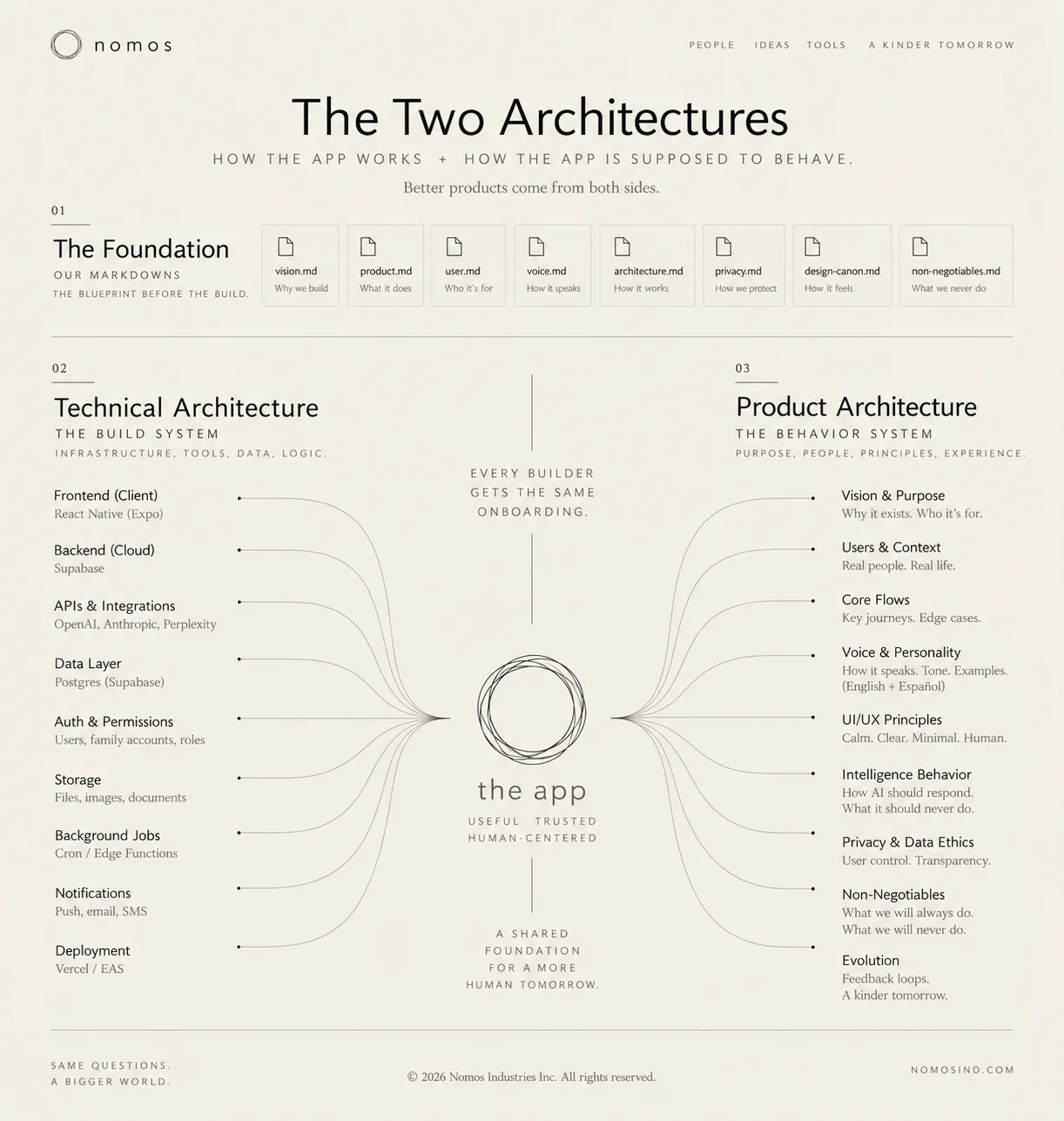
Two plans for the same app: what the person needs, and how the working parts support it.
The plan for how the parts of your app fit and work together.For example: Lunchbox needs a place to pick meals, a way to save them and a shopping list. The plan shows how they connect.Still unclear? Ask your AI: “Explain Architecture in even plainer English. Use an example from my app.” means a plan for how things fit together. You do not need to be an engineer to describe what you want.
The plan for what people can do in your app and what happens at each step.For example: A parent picks five lunches, checks the plan, then opens a shopping list.Still unclear? Ask your AI: “Explain Product architecture in even plainer English. Use an example from my app.”The person’s experience
For Lunchbox: a parent plans five school lunches, reviews them, and gets one shopping list. Describe the steps, the wording, and what happens if something goes wrong.
The plan for the parts that make your app work behind the screens.For example: Decide where Lunchbox saves meals and how it keeps each family’s plan private.Still unclear? Ask your AI: “Explain Technical architecture in even plainer English. Use an example from my app.”The working parts
For Lunchbox: save meals under the right family, let approved family members share the plan, and prevent other families from seeing it.
Your app’s instruction folder: short files that tell your AI what to build and which rules to follow.For example: One Lunchbox file describes the app. Another says which part to build first.Still unclear? Ask your AI: “Explain Foundation documents in even plainer English. Use an example from my app.”Your written instructions
Save the agreed plans in short text files. Each file has a job, such as product.md for what you are making or build-order.md for what comes first.
These files use ,A simple way to write text with headings and lists, often in a file ending in .md. Here, you use it to write your app’s instructions.For example: A file named product.md says: “Lunchbox plans five school lunches and makes one shopping list.”Still unclear? Ask your AI: “Explain Markdown in even plainer English. Use an example from my app.” a simple way to write text with headings and lists. Here you are writing your app’s ,The plan for what you want to make and how it should work.For example: Lunchbox’s plan shows how a parent picks meals, saves the week and gets a shopping list.Still unclear? Ask your AI: “Explain Blueprint in even plainer English. Use an example from my app.” not app code.
Your Your app’s rulebook. It keeps everyone using the same names, meanings and rules.For example: Lunchbox’s rule says “a week means Monday through Friday.” Every screen should use those same five days.Still unclear? Ask your AI: “Explain Canon in even plainer English. Use an example from my app.” is the agreed version. If Lunchbox defines a week as Monday through Friday, every builder follows that definition until you change it.
You will save both guides and fill them in with your AI stands for Artificial Intelligence.Computer tools trained to do jobs such as answering questions, making pictures or writing code. They can make mistakes, so you still check the work.For example: Ask an AI to suggest Lunchbox screens, then decide which ones help a parent.Still unclear? Ask your AI: “Explain AI in even plainer English. Use an example from my app.” in the Foundation phase. Read and correct the files before asking it to build.
You direct the work. When an AI stands for Artificial Intelligence.Computer tools trained to do jobs such as answering questions, making pictures or writing code. They can make mistakes, so you still check the work.For example: Ask an AI to suggest Lunchbox screens, then decide which ones help a parent.Still unclear? Ask your AI: “Explain AI in even plainer English. Use an example from my app.” says “done,” open the app and check what it actually does.
Start with what you expected and what happened. For Lunchbox: “I chose five lunches and saved. After I reopened the page, the plan was empty.” Write the steps and exact .A message that tells you something went wrong.For example: Lunchbox says “We could not save your lunches. Try again.” Share the exact message with your AI.Still unclear? Ask your AI: “Explain Error message in even plainer English. Use an example from my app.” Remove passwords and private details before sharing.
Pause and describeName the problem
Try the task again. Say which screen you used, what you tapped and what happened. Correct anything the AI stands for Artificial Intelligence.Computer tools trained to do jobs such as answering questions, making pictures or writing code. They can make mistakes, so you still check the work.For example: Ask an AI to suggest Lunchbox screens, then decide which ones help a parent.Still unclear? Ask your AI: “Explain AI in even plainer English. Use an example from my app.” misunderstood.
Ask it to show whyCheck the evidence
For a ,Something in your app that does not work the way it should.For example: Tapping Add makes a lunch disappear instead of adding it.Still unclear? Ask your AI: “Explain Bug in even plainer English. Use an example from my app.” ask the AI stands for Artificial Intelligence.Computer tools trained to do jobs such as answering questions, making pictures or writing code. They can make mistakes, so you still check the work.For example: Ask an AI to suggest Lunchbox screens, then decide which ones help a parent.Still unclear? Ask your AI: “Explain AI in even plainer English. Use an example from my app.” to show which part failed and what check will catch it. For a factual claim, open the source link and check that it says what the AI claims.
Ask your other AI stands for Artificial Intelligence.Computer tools trained to do jobs such as answering questions, making pictures or writing code. They can make mistakes, so you still check the work.For example: Ask an AI to suggest Lunchbox screens, then decide which ones help a parent.Still unclear? Ask your AI: “Explain AI in even plainer English. Use an example from my app.” to review itGet another view
Give it the same files, instructions and test results. Ask what the first AI stands for Artificial Intelligence.Computer tools trained to do jobs such as answering questions, making pictures or writing code. They can make mistakes, so you still check the work.For example: Ask an AI to suggest Lunchbox screens, then decide which ones help a parent.Still unclear? Ask your AI: “Explain AI in even plainer English. Use an example from my app.” missed. Two matching answers can still be wrong.
Try the task yourselfSee whether the fix works
In Lunchbox, choose five lunches, save, close and reopen. Check the same meals and shopping list are there. Also check that another test family cannot open your private plan.
Keep changes small. Save a version you can return to, then send it to .A website for keeping your app’s files online. It also keeps the older versions you send there.For example: Send Lunchbox’s files to GitHub. Later, you can open that saved version from another computer.Still unclear? Ask your AI: “Explain GitHub in even plainer English. Use an example from my app.” Your tools call those two steps A saved version of your project. It has a short note about what changed, so you can find it later.For example: You add Lunchbox’s shopping list. Save that version with the note “Added the shopping list.”Still unclear? Ask your AI: “Explain Commit in even plainer English. Use an example from my app.” and .Send your saved versions to an online home such as GitHub. This updates the copy kept there.For example: After saving the new Lunchbox shopping list, send that version to GitHub. Open it there to check it arrived.Still unclear? Ask your AI: “Explain Push in even plainer English. Use an example from my app.” Try new changes in a separate working version, called a .A separate version of your work where you can try changes.For example: Try a new Lunchbox shopping list before adding it to the main version you keep.Still unclear? Ask your AI: “Explain Branch in even plainer English. Use an example from my app.” Check them before adding them to the main version, called a .Bring changes from one version of your work into another.For example: Add the tested shopping-list changes to Lunchbox’s main version.Still unclear? Ask your AI: “Explain Merge in even plainer English. Use an example from my app.” Ask whether sending or adding the changes will also put them online.
If the same problem keeps returning, stop adding fixes. Ask how to return to the last working version without losing saved information. Get a fresh review of the problem.
A new chat may not know what you already decided. A short note helps you continue without starting over.
Long chats can use more of your tool's limit and become harder to follow. Tools handle old messages in different ways. A short A short note that helps you or another helper continue the work later. Say what is done, what still needs work and where the files are.For example: Before closing the chat, save a note saying which Lunchbox screen works and what to build next.Still unclear? Ask your AI: “Explain Handoff in even plainer English. Use an example from my app.” helps you keep the decisions that matter.
Try to keep one chat to one job: one phase, one feature, one problem. Start a fresh chat when you move to something else.
When a chat gets long, or you're starting something new, write a A short note that helps you or another helper continue the work later. Say what is done, what still needs work and where the files are.For example: Before closing the chat, save a note saying which Lunchbox screen works and what to build next.Still unclear? Ask your AI: “Explain Handoff in even plainer English. Use an example from my app.” instead of scrolling back to find things.
A A short note that helps you or another helper continue the work later. Say what is done, what still needs work and where the files are.For example: Before closing the chat, save a note saying which Lunchbox screen works and what to build next.Still unclear? Ask your AI: “Explain Handoff in even plainer English. Use an example from my app.” is a short note to your next chat: what's done, what's next, and anything it needs to know to pick up exactly where you left off. Paste it in before you ask for anything new.
A new chat may not have the details from your old chat. Keep your foundation files in a project or shared space your AI stands for Artificial Intelligence.Computer tools trained to do jobs such as answering questions, making pictures or writing code. They can make mistakes, so you still check the work.For example: Ask an AI to suggest Lunchbox screens, then decide which ones help a parent.Still unclear? Ask your AI: “Explain AI in even plainer English. Use an example from my app.” can read. Ask it to name the files it can see before it starts. If your tool has no project space, attach the files or paste the short .A short note that helps you or another helper continue the work later. Say what is done, what still needs work and where the files are.For example: Before closing the chat, save a note saying which Lunchbox screen works and what to build next.Still unclear? Ask your AI: “Explain Handoff in even plainer English. Use an example from my app.”
Save the conversation somewhere you can search later, like a Google Doc. It matters most for your long build chats: the decisions, the reasoning, the exact wording you landed on. Searching a doc for "the button color we picked" beats scrolling through months of chat history.
Different AIs are good at different jobs, and the names change every few months. Learn the four jobs once. Swap in the newest names whenever you need to.
Start with the AI stands for Artificial Intelligence.Computer tools trained to do jobs such as answering questions, making pictures or writing code. They can make mistakes, so you still check the work.For example: Ask an AI to suggest Lunchbox screens, then decide which ones help a parent.Still unclear? Ask your AI: “Explain AI in even plainer English. Use an example from my app.” tools you already have. I recommend ChatGPT and Claude so you can get two perspectives. You do not need a different Paying again each month or year to keep using something.For example: A family pays $5 each month for an imagined paid version of Lunchbox.Still unclear? Ask your AI: “Explain Subscription in even plainer English. Use an example from my app.” for every job.
JobWhat to ask for
PlannerHelp me turn my Lunchbox idea into a clear first version. Ask questions before filling gaps. When the plan is ready, write the prompt for my builder.
BuilderUse a coding tool that can change the app files and run checks. Give it the prompts your planner writes. Cursor is optional.
ReviewerGive a second AI stands for Artificial Intelligence.Computer tools trained to do jobs such as answering questions, making pictures or writing code. They can make mistakes, so you still check the work.For example: Ask an AI to suggest Lunchbox screens, then decide which ones help a parent.Still unclear? Ask your AI: “Explain AI in even plainer English. Use an example from my app.” the plan, actual changes and test results. Ask what is wrong or missing.
Quick helperExplain this word or A message that tells you something went wrong.For example: Lunchbox says “We could not save your lunches. Try again.” Share the exact message with your AI.Still unclear? Ask your AI: “Explain Error message in even plainer English. Use an example from my app.” in plain English and tell me the next small step.
Your planner is your planning partner. Pick one and stay with it. Use it to brainstorm, plan it all out and make your instruction files. Then it writes every prompt for your builder, including changes you want later. Before it writes one, it repeats back what it understood in 3 sentences or less, so there's no misunderstanding.
The AI system that makes the answers inside an AI tool.For example: Two AI tools may use different models and give different answers to the same Lunchbox question.Still unclear? Ask your AI: “Explain Model in even plainer English. Use an example from my app.” names, available features and plan limits change. Check the tool’s current options when you choose it. Paying more is useful only if it solves a limit you actually have.
Two AIs agreeing is not proof. Open the app and check that the promised task works.
Some tools keep your work online so you can reach it from another device. Check what your chosen tool saves before switching.
The Computers you reach over the internet to run your app or keep its files.For example: Lunchbox keeps a plan online so both parents can open it from their own phones.Still unclear? Ask your AI: “Explain Cloud in even plainer English. Use an example from my app.” means computers you reach over the internet. Work saved there can be opened from another device if your tool and account allow it. Work saved only on your own device will not appear elsewhere by itself.
Your code on A website for keeping your app’s files online. It also keeps the older versions you send there.For example: Send Lunchbox’s files to GitHub. Later, you can open that saved version from another computer.Still unclear? Ask your AI: “Explain GitHub in even plainer English. Use an example from my app.”An online copy you can check
Ask your AI stands for Artificial Intelligence.Computer tools trained to do jobs such as answering questions, making pictures or writing code. They can make mistakes, so you still check the work.For example: Ask an AI to suggest Lunchbox screens, then decide which ones help a parent.Still unclear? Ask your AI: “Explain AI in even plainer English. Use an example from my app.” to save a version and send it to .A website for keeping your app’s files online. It also keeps the older versions you send there.For example: Send Lunchbox’s files to GitHub. Later, you can open that saved version from another computer.Still unclear? Ask your AI: “Explain GitHub in even plainer English. Use an example from my app.” Open the files there before switching devices. Only work that reached GitHub is in that copy.
Use the same account in each toolSame account, any device
Use the same sign-in on your phone and your laptop. Check what each tool actually .Keep copies in different places up to date with each other. Only the information your tool supports will move between them.For example: Lunchbox can send a changed meal plan to another parent’s phone.Still unclear? Ask your AI: “Explain Sync in even plainer English. Use an example from my app.” In this Playbook, signed-in checkmarks and Your app can sync. Brand notes currently stay in this ;The app you open to visit websites, such as Safari or Polar.For example: Open Polar and type the address of the Lunchbox website.Still unclear? Ask your AI: “Explain Browser in even plainer English. Use an example from my app.” use their An extra copy kept so you can recover work if the original is lost or damaged.For example: Download a copy of your Lunchbox brand notes before switching browsers.Still unclear? Ask your AI: “Explain Backup in even plainer English. Use an example from my app.” option before moving devices.
A Computers you reach over the internet to run your app or keep its files.For example: Lunchbox keeps a plan online so both parents can open it from their own phones.Still unclear? Ask your AI: “Explain Cloud in even plainer English. Use an example from my app.”An AI helper that can do tasks with tools, such as changing a file or opening a website.For example: Your AI helper adds a Save button to Lunchbox’s files, then shows you what changed.Still unclear? Ask your AI: “Explain Agent in even plainer English. Use an example from my app.”An AI helper running online
Some building tools can keep working online after you close your laptop. Check that your tool supports this. Give it one small job and ask for a draft in a separate working version, called a .A separate version of your work where you can try changes.For example: Try a new Lunchbox shopping list before adding it to the main version you keep.Still unclear? Ask your AI: “Explain Branch in even plainer English. Use an example from my app.” Review the draft before publishing.
If you have only a little time, choose a small job such as fixing a typo. Come back and check the result before using it.
Good jobs for a short window: fix a typo, change some wording, write a first draft of a page, or add one small feature you've already described in your .A written plan that says what your app should do, including what happens if something goes wrong.For example: “Save the parent’s five lunches. If saving fails, keep their choices and let them try again.”Still unclear? Ask your AI: “Explain Specification in even plainer English. Use an example from my app.” Save big decisions and anything involving money, logins or private data for when you're at a real keyboard.
Check the changes before adding them to your main version. Your AI stands for Artificial Intelligence.Computer tools trained to do jobs such as answering questions, making pictures or writing code. They can make mistakes, so you still check the work.For example: Ask an AI to suggest Lunchbox screens, then decide which ones help a parent.Still unclear? Ask your AI: “Explain AI in even plainer English. Use an example from my app.” makes a draft. You decide what to keep.
Codex and Claude Code are tools that can help change app files and run checks. Choose a version you can open on your device. Check its current access and costs in the official instructions. A free chat account may not include work done by an AI stands for Artificial Intelligence.Computer tools trained to do jobs such as answering questions, making pictures or writing code. They can make mistakes, so you still check the work.For example: Ask an AI to suggest Lunchbox screens, then decide which ones help a parent.Still unclear? Ask your AI: “Explain AI in even plainer English. Use an example from my app.” building tool. See https://developers.openai.com/codex and https://code.claude.com/docs/en/overview.
Before switching tools, save your work and send it to .A website for keeping your app’s files online. It also keeps the older versions you send there.For example: Send Lunchbox’s files to GitHub. Later, you can open that saved version from another computer.Still unclear? Ask your AI: “Explain GitHub in even plainer English. Use an example from my app.” Open the files there to check that the new version arrived, including your app’s instructions. Use the same GitHub account on each device. Never put passwords or secret keys into the chat.